Like many of you, I spend my days building web apps: forms, dashboards, a couple of animations here and there.
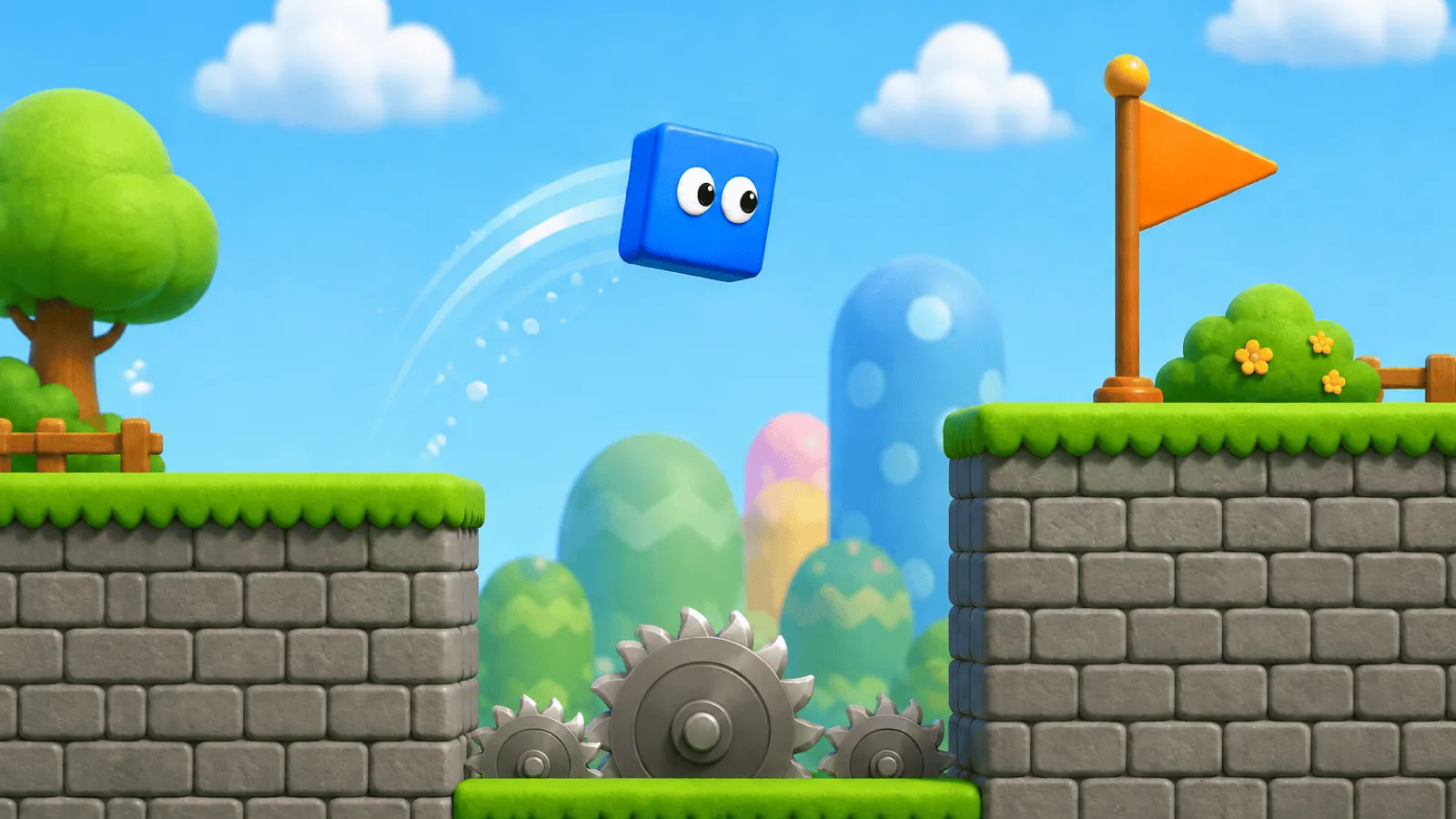
Then, a few days ago, I watched a YouTube video of someone building a browser game: a tiny platformer. You control a blue box, jumping over boxes and avoiding cannon shots. A few minutes into the tutorial, I realized: I have no idea how this works. Loops, physics, collision math... it all sounded familiar, but very different from the reactive world I'm used to.
And a question popped up in my head: can I build a platformer game using Vue? Can my Vue skills help me in my game dev journey? Luckily, the answer to both questions is yes.
I built a platformer game with Vue 3 and PixiJS, and almost every piece of it mapped to something you already do in Vue: a game loop is a watcher, game state is a ref, the scene is a component tree, and so on.
So join me to discover how to do it! We'll walk through the seven ideas that make up every 2D game, each one paired with its Vue equivalent, with live demos you can poke at as we go.
Click this iframe to play: use the arrow keys to move and the spacebar to jump.
The Game Loop
A single-page application re-renders only when the state changes. You want to minimize the number of times you repaint elements in the DOM. That's why we use the virtual DOM and other techniques to keep patching to a minimum. Touching the DOM is expensive, so we do it as little as possible.
In a game, that's totally different. Most likely you won't be dealing with DOM elements, but with a single <canvas>. The whole game takes place inside that canvas. The rendering model is completely different: the scene gets repainted continuously. At 60 frames per second, the canvas is redrawn 60 times every second. Each frame is a fresh snapshot, and when those snapshots come quickly enough, our eyes perceive motion.
But wait, isn't that... a lot? Recomputing everything, all the time, and repainting the whole scene many times per second? Well, yeah, that can sound like overkill in our DOM world, since we're used to waiting for specific events (a keystroke, a network response) and only re-rendering what we need.
But inside the <canvas>, things are different. It doesn't have a tree of expensive-to-patch elements. Instead, it's just a blank canvas that we can paint, clear, and repaint very quickly. This can still sound like a lot for a slow, turn-based game with only a few elements on screen. But once you introduce physics, collisions, or dozens of moving bullets, it makes sense to calculate where everything should be and paint it onto the canvas every frame.
And that's the game loop! The mindset shift is from event-driven to loop-driven. Once that clicks, you're ready for game development.
Games in Plain JavaScript
In the browser, that loop is requestAnimationFrame:
function loop() {
  update()
  render()

  requestAnimationFrame(loop)
}

requestAnimationFrame(loop)
requestAnimationFrame is a browser API specifically designed for animations. Instead of asking JavaScript to run your code as fast as possible, you're asking the browser: "Call this function right before you paint the next frame."
This is an important distinction. Browsers already have their own rendering pipeline. Roughly 60 times per second (or more on high-refresh-rate displays), they calculate layouts, paint pixels, and display a new frame on the screen. requestAnimationFrame lets your code hook directly into that process, so your updates happen at exactly the right moment.
You could imagine replacing it with a setInterval running every 16 milliseconds, but that has a few problems. Timers aren't synchronized with the browser's rendering cycle, so they can fire too early, too late, or even while the browser is still busy painting the previous frame. That can lead to choppy animations and unnecessary work.
requestAnimationFrame is also smarter than a timer. If the tab is hidden or minimized, the browser will automatically pause or greatly reduce how often your callback runs, saving CPU and battery life.
One thing to notice is that requestAnimationFrame only schedules one callback. It doesn't automatically repeat. That's why the last line inside our loop() function is another call to requestAnimationFrame(loop). Each frame schedules the next one, creating an endless cycle that continues until we stop requesting new frames.
That's the foundation of nearly every browser game. Every frame, the browser says, "It's time to draw again," your game updates its world, renders the result, and asks to be called back for the next frame.
Time vs. Frames
There's one subtle problem, though.
We just said the browser calls our loop before every frame. But what exactly is a frame?
If every screen refreshed exactly 60 times per second, life would be easy. We could move the player 5 pixels every frame and know they'd travel 300 pixels every second. But... the real world is messier.
Some players have 144Hz monitors. Others are on older laptops that can barely manage 30 FPS. Sometimes the browser gets busy for a moment and skips a frame. If we move everything by a fixed amount per frame, then the game's speed becomes tied to the machine running it. Faster computers make the game run faster, slower ones make it run in slow motion.
What we really care about isn't how many frames have passed. We care about how much time has passed.
And that's where delta time comes in. Delta time is simply the amount of time that elapsed since the previous frame. Luckily, requestAnimationFrame already gives us the current timestamp every time it calls our callback. By comparing it to the previous timestamp, we can calculate exactly how much time has passed:
let previousTime = 0

function loop(currentTime) {
  const elapsed = currentTime - previousTime
  const deltaTime = elapsed / (1000 / 60)
  previousTime = currentTime

  update(deltaTime)
  render()

  requestAnimationFrame(loop)
}

requestAnimationFrame(loop)
Here I'm also normalizing the value to a 60 FPS baseline. That means deltaTime is 1.0 at 60 FPS, 2.0 at 30 FPS, and 0.5 at 120 FPS.
Instead of saying, "move 5 pixels every frame," we say, "move 5 pixels, scaled by how long this frame took."
Multiply your movement by deltaTime, and suddenly your game behaves the same everywhere. The player covers the same distance per second whether the browser renders 30 frames or 144. Motion is based on real time, not frame count.
The demo below is a bare requestAnimationFrame loop, running as you read this. Nothing is animating the count; the loop just keeps coming around.
That counter is the whole engine underneath. The loop comes back around roughly 60 times a second whether your state changed or not. Every time it does, your game gets another opportunity to update the world, draw a new frame, and ask the browser to call it again.
That's the fundamental shift from web development to game development. Instead of waiting for something to happen and reacting to it, you're continuously simulating the world. The loop never stops. It just keeps asking, "What should the next frame look like?"
Pixi, for Games and More
So far, we've only been incrementing a counter. Drawing a game is a very different challenge.
Sure, you could use the Canvas 2D API directly, or even WebGL if you're feeling adventurous. But it doesn't take long before you're worrying about batching draw calls, managing textures, applying transforms, and solving a dozen rendering problems that have nothing to do with the game you actually want to build.
That's the layer PixiJS takes care of.
PixiJS is a high-performance 2D rendering engine. It renders everything into an HTML <canvas>, using WebGL under the hood whenever possible, while exposing a friendly scene graph made up of sprites, containers, text, graphics, and other display objects. You tell Pixi what to draw; it figures out the fastest way to draw it.
Notice what Pixi doesn't do: It doesn't know what gravity is, it doesn't know how your enemies move, or whether your player won the game. That's our job. In other words, we have the control.
Pixi's responsibility is rendering, and it does that extremely well. That's why you'll find it powering not just games, but also interactive websites, visualizations, educational tools, and data-heavy interfaces.
It also provides its own ticker, which is essentially a wrapper around requestAnimationFrame. Instead of writing and managing the game loop ourselves, we just register a callback and Pixi calls it every frame.
And once Vue enters the picture, we barely even write that.
Vue Custom Renderer for Pixi
Here's something you might not know: Vue is not limited to the DOM. Of course, rendering websites and web applications is by far its most common use case, but Vue's renderer is completely independent from its reactivity system. That means we can define our own custom renderer and use the power of Vue reactivity to render to entirely different environments, like a terminal or (you guessed it) inside a <canvas>.
That's where vue3-pixi comes in. It's a custom Vue renderer for PixiJS. Instead of mixing Vue with imperative Pixi code, we can build the entire game using components, props, emits, and reactivity: the same tools we already use every day.
It also exposes the Pixi ticker as a composable called onTick. You can think of it as a watchEffect that doesn't wait for dependencies: it simply runs every frame.
import { ref } from 'vue'
import { onTick } from 'vue3-pixi'

const x = ref(0)
const speed = 2

onTick(({ deltaTime }) => {
  x.value += speed * deltaTime
})
Notice how deltaTime is simply handed to us now. The ticker has already measured the time between frames, so all the timestamp bookkeeping from our vanilla requestAnimationFrame loop disappears. For now, just think of speed as a constant movement rate. We'll make this more realistic when we get to physics.
In the real game we'd also cap deltaTime. If the browser pauses the loop (for example, because you switch tabs), the next frame arrives with a huge deltaTime. Without a limit, x += speed * deltaTime would make the player leap across the level in a single update.
One important detail: the whole game runs on a single onTick. Every snippet below is just a slice of that one callback, executed in order. There's no second loop applying gravity twice.
Smells Like Vue Spirit
With vue3-pixi, game code starts looking... like Vue.
The root is an <Application>, which creates the canvas and starts the ticker for you.
<script setup lang="ts">
import { Application } from 'vue3-pixi'
import { WORLD } from './game/level'
import World from './components/World.vue'
</script>

<template>
  <Application
    :width="WORLD.w"
    :height="WORLD.h"
    :background="0xbfe9f7"
    :antialias="true"
  >
    <World />
  </Application>
</template>
<World> is just another Vue component. Its template describes the current stage:
<template>
  <container>
    <Background />

    <Platform
      v-for="(p, i) in PLATFORMS"
      :key="`p${i}`"
      :rect="p"
    />
    <Saw v-for="(s, i) in SAWS" :key="`s${i}`" :pos="s" />
    <Goal />

    <Player :active="active" @hit="onHit" @win="onWin" />

    <Hud :lives="lives" :won="won" />
  </container>
</template>
We are using v-for to render platforms and saws, and we have a <Player> emitting @hit and @win to its parent, just like a form component emitting @submit. A game built with components, passing props down and events up.
Suddenly, it feels familiar again!
But remember: this uses a custom Vue renderer, so when you write <Player>, <Hud>, or <Goal>, you're ultimately creating a scene graph of PixiJS objects instead of DOM elements. We don't have access to classic <button> or <input> in the canvas world (HTML in canvas is technically possible... but that's a topic for another day).
Everything else is the Vue you already know: directives like v-for and v-if, props, refs, components, and emits. All of it works exactly as it does in a web app.
However, there's a couple of gotchas!
Gotcha 1: Containers
In a web app, a parent contains its children through CSS layout. In a scene graph, a child's position is relative to its parent. Move a <container> and everything inside it moves too. That's how you slide an entire level, or move an enemy and its health bar together as a single unit.
So the thing painting pixels to a canvas is a Vue component tree. You already know how to build one of those.
Gotcha 2: Down Is Positive?
On a screen, Y goes down. The origin (0, 0) sits in the top-left corner, and a bigger Y value means lower on the screen. School-math Y went up, which is exactly why this trips people up.
It's the same as CSS top: a top: 200px element sits below a top: 0 one.
So, to make the player jump, you set its vertical velocity to a negative number, because up means heading toward smaller Y:
// jump velocity is NEGATIVE (up is smaller Y)
export const PHYS = {
  speed: 3.4,
  gravity: 0.55,
  jump: -11.5,
  pw: 28,
  ph: 28,
}
Throughout these snippets I refer to the constants as bare speed, gravity, and jump (the game destructures them out of PHYS). So when you see a lone gravity later, that's this 0.55.
Gravity, meanwhile, is positive, constantly pulling Y back down. Up is negative, down is positive.
Gotcha 3: Physics!
I'm not great at math. That's why talking about a game physics engine kind of scares me. Thing is: physics for a platformer just comes down to two rules and middle-school arithmetic, run 60 times a second. Let's break it down.
You track two numbers per moving object:
- Position, where it is:
xandy. These are yourrefs. - Velocity, how fast it's moving:
vxandvy. Plain variables.
In the loop, that's three lines doing the heavy lifting:
onTick(({ deltaTime }) => {
  const dt = Math.min(deltaTime, 2)

  // gravity tugs velocity downward every frame (down = +)
  vy += gravity * dt // gravity = 0.55

  // velocity moves the position
  x.value += vx * dt
  y.value += vy * dt

  // ...then we resolve collisions, next section
})
The ordering matters: velocity updates before position. This is a simple physics choice. There are two ways to update movement each frame:
- Move the object, then apply forces
- Apply forces, then move the object
They look almost identical in simple cases like jumping. The difference is tiny, sometimes just a fraction of a pixel per frame.
But the order matters when things get more dynamic, like springs, bouncing, or anything that should feel stable over time. One ordering can slowly add extra energy into the system, making motion feel slightly “off” after many frames. This version avoids that and stays stable, which is why it's the common default in games.
A jump is just setting vy to a large negative number once. Gravity does the rest: it slows the rise, pauses at the top, then accelerates the fall. The parabolic arc is emergent. Nobody draws that curve; it falls out of adding 0.55 to a number every frame.
Tap Jump and watch vy. It starts at -11.5, climbs toward zero as the box rises, crosses zero at the peak, then goes positive on the way down:
There are no "correct" numbers here. Bigger gravity makes heavier, snappier jumps; smaller gravity gives floaty moon physics. Game feel is mostly twiddling these constants until the jump feels right under your thumb. This game landed on gravity 0.55 and jump -11.5 after a lot of tapping.
Gotcha 4: Handling Input
Games poll input instead of reacting to it. In a web form you handle a @keydown the moment it arrives, but that's too jittery for a game: held keys auto-repeat with gaps, and simultaneous inputs like left-plus-jump become inconsistent. So instead of reacting directly, you keep a running set of which keys are currently held, and every frame the loop reads that set.
The events only maintain state. They never move anything:
const keys = new Set<string>()

function onKeyDown(e: KeyboardEvent) {
  keys.add(e.key)
}

function onKeyUp(e: KeyboardEvent) {
  keys.delete(e.key)
}

onMounted(() => {
  window.addEventListener('keydown', onKeyDown)
  window.addEventListener('keyup', onKeyUp)
})

onUnmounted(() => {
  window.removeEventListener('keydown', onKeyDown)
  window.removeEventListener('keyup', onKeyUp)
})
That same single onTick reads them every frame and converts held keys into velocity:
onTick(() => {
  const left =
    keys.has('ArrowLeft') || keys.has('a') || keys.has('A')

  const right =
    keys.has('ArrowRight') || keys.has('d') || keys.has('D')

  vx = (right ? speed : 0) - (left ? speed : 0)
})
Keyboard events are fast and bursty; the loop is slow and steady. Letting events only update state, and letting the loop read that state, keeps movement smooth. Walking and jumping at the same time just works.
Jumping is the exception. Holding a key triggers auto-repeat, so if jump just checked “is the key down?”, you'd bounce like a pogo stick. Instead we detect the edge (the moment the key is first pressed) and store a one-shot flag.
The keydown handler becomes:
function onKeyDown(e: KeyboardEvent) {
  keys.add(e.key)

  if (isJump(e.key)) {
    // only the first press, not auto-repeat
    if (!e.repeat) wantJump = true
    e.preventDefault()
  }
}
e.repeat is false on the initial press and true for the browser's auto-generated repeats. Using it ensures one press produces exactly one jump.
The loop consumes that flag. Early in the same tick, it checks both the request and the onGround state from the previous frame's collision step, then applies the jump:
if (wantJump && onGround) {
  vy = jump
  onGround = false
  wantJump = false
}
That ties it together: collision sets onGround, input sets wantJump, and the loop decides when both conditions are true.
Let's Make Things Collide
Alright, we're ready to start building the actual platformer!
But first, a problem we created and never solved. The player has velocity and gravity now, so they fall. And they keep falling, straight through every platform, off the bottom of the screen, gone. Nothing stops them, because nothing is checking.
That check is most of what a platformer is. Every frame, before anything else moves, you ask one yes/no question of every platform: is the player's box overlapping this one? If it is, you shove the player back out so they end up resting against it instead of sunk inside it.
You've done something similar before: in the DOM, getBoundingClientRect() hands you an x, y, width, and height, and you compare two of those boxes to see if a dropdown clears its trigger or a tooltip runs off-screen. In a game, collision is that same comparison, just run 60 times a second. Every platform in the level is a Rect, a plain { x, y, w, h }, the same four numbers that bounding box gives you.
The comparison has an intimidating name, AABB (Axis-Aligned Bounding Box), and a friendly definition: two rectangles overlap only when they overlap on both the X and Y axes. Miss on either one and there's a gap between them. Here it is straight from the game, annotated so each line reads in plain English:
function overlaps(
  ax: number, ay: number,
  aw: number, ah: number,
  b: Rect,
) {
  return (
    // a's left is left of b's right
    ax < b.x + b.w &&
    // a's right is right of b's left
    ax + aw > b.x &&
    // a's top is above b's bottom
    ay < b.y + b.h &&
    // a's bottom is below b's top
    ay + ah > b.y
  )
}
If that returns true while the player is falling, you snap their feet to the top of the platform and zero out vy. Now they're standing. The box below tracks back and forth and flips to red the instant overlaps() turns true against the wall:
Detecting the overlap is half the job. Resolving it is the other half, and there's one move that makes it all click: handle one axis at a time. The loop applies horizontal movement and pushes the player out of any wall it hit, then applies vertical movement and pushes out of any floor or ceiling:
// horizontal move, then resolve against every platform
x.value += vx * dt
for (const p of PLATFORMS) {
  if (overlaps(x.value, y.value, pw, ph, p)) {
    // moving right: snap to the wall's left face
    if (vx > 0) x.value = p.x - pw
    // moving left: snap to its right face
    else if (vx < 0) x.value = p.x + p.w
    vx = 0
  }
}

// vertical move, then resolve again
y.value += vy * dt
onGround = false
for (const p of PLATFORMS) {
  if (overlaps(x.value, y.value, pw, ph, p)) {
    if (vy > 0) {
      // landed on top
      y.value = p.y - ph
      onGround = true
      vy = 0
    } else if (vy < 0) {
      // bonked your head
      y.value = p.y + p.h
      vy = 0
    }
  }
}
Splitting the axes is what does the work. The same handful of lines makes "slide along a wall while falling" and "land softly on a ledge" both work. Corners and very fast movers need more care (resolution order matters, and the dt clamp earns its keep here), but per-axis is the clean backbone. Notice onGround gets recomputed here every frame, the exact flag the jump code checks before letting you launch.
Sharp Saws and One Goal!
Two things in the level aren't platforms: the spinning saw that hurts you and the goal you're trying to reach. They need collision too.
The saw is round, so treating it like a rectangle would feel wrong near the edges. Instead it uses circle vs box collision: you take the saw's center, clamp it to the player's rectangle to find the closest point, then check how far that point is from the center.
const r = SAW_RADIUS - 4 // slightly forgiving

for (const s of SAWS) {
  // closest X on player box
  const nx = Math.max(x.value, Math.min(s.x, x.value + pw))
  // closest Y on player box
  const ny = Math.max(y.value, Math.min(s.y, y.value + ph))

  const dx = s.x - nx
  const dy = s.y - ny

  if (dx * dx + dy * dy < r * r) {
    emit('hit')
    respawn()
    return
  }
}
That dx*dx + dy*dy < r*r is the whole trick. It avoids Math.sqrt entirely. You only care if you're inside the radius, not the exact distance.
The goal, a little flag, is simpler. It's just a rectangle, so it reuses the same overlap check as platforms:
if (overlaps(x.value, y.value, pw, ph, GOAL)) {
  emit('win')
}
Both cases just emit events upward. The player doesn't “decide” anything. It only reports what happened. The actual game state lives one level above, in Vue reactivity:
const lives = ref(START_LIVES)
const won = ref(false)

const active = computed(() => !won.value)

function onHit() {
  lives.value -= 1
  if (lives.value <= 0) lives.value = START_LIVES
}

function onWin() {
  won.value = true
}
respawn() stays inside the player, where it resets position and velocity. onHit just adjusts lives. Simple separation: the player handles where you are, the world handles what that means.
The important line here is active. It flows straight into the player:
if (!props.active) return
So the moment won flips to true, the entire simulation stops updating. No more physics, no more movement, just a frozen world.
And the HUD is just another Vue component reacting to the same state. lives drives the hearts, won drives the victory screen.
At this point, the whole game is just state flowing through components, and a loop deciding when that state gets updated.
From Start to Game Over
Here's everything above in the order it actually happens inside a single tick of the loop:
- Read input. Check which keys are currently in the
keysset, and whetherwantJumpwas armed. - Jump. If
wantJumpandonGroundare true, setvy = jumpand consume the flag. - Apply gravity.
vy += gravity * dt. - Move + resolve X. Apply horizontal velocity, then push out of any wall collisions.
- Move + resolve Y. Apply vertical velocity, then snap to floors or ceilings, and recompute
onGround. - Check the world. Did we hit a saw, fall into a pit, or reach the goal? Emit
hitorwin. - Render. Pixi draws the updated scene, and the loop repeats.
Steps 1–6 are everything inside onTick. Step 7 is automatic: you're only mutating reactive refs, and vue3-pixi turns that into a redraw, just like Vue re-renders a template when state changes.
In Closing
That's the entire platformer: a loop, a few refs, and a lot of adding numbers. The blue box can now jump over platforms, avoid blades and reach the flag. Under the hood it's just vy += 0.55, a rectangle overlap test, and Vue's reactivity doing what it does best. Suddenly this doesn't feel too alien, right? Let me tell you: if you were able to ship that dashboard or build that crazy data table, you already have what it takes to build a game!
Did you learn something new? Did you build a game? Let me know!
Until next time!